Getting Started
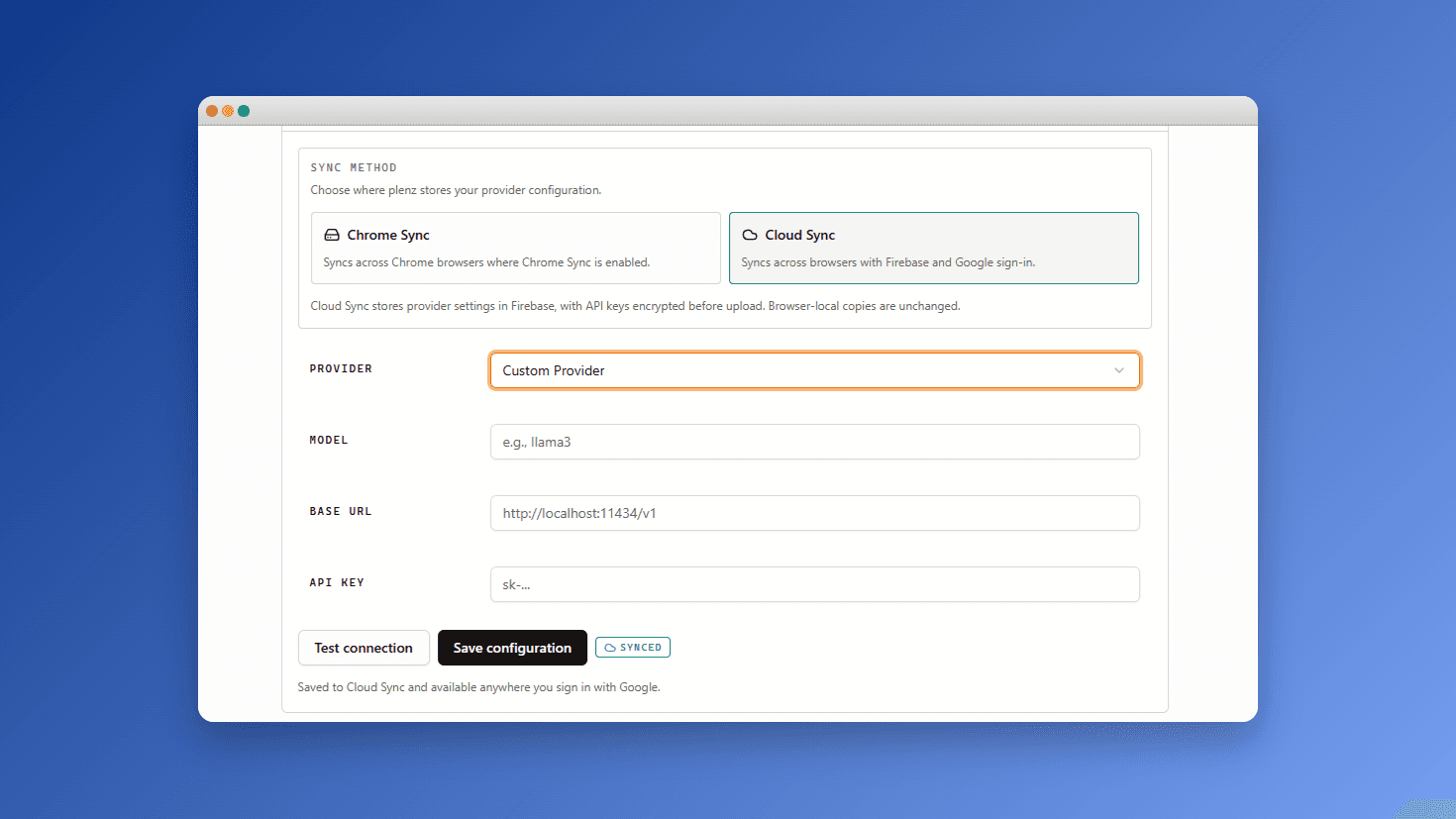
Welcome to plenz. We run completely entirely in your browser environment, which means your prompt text never routes through a unified backend server and stays private by default. Let's get your workspace set up.
Install the Extension
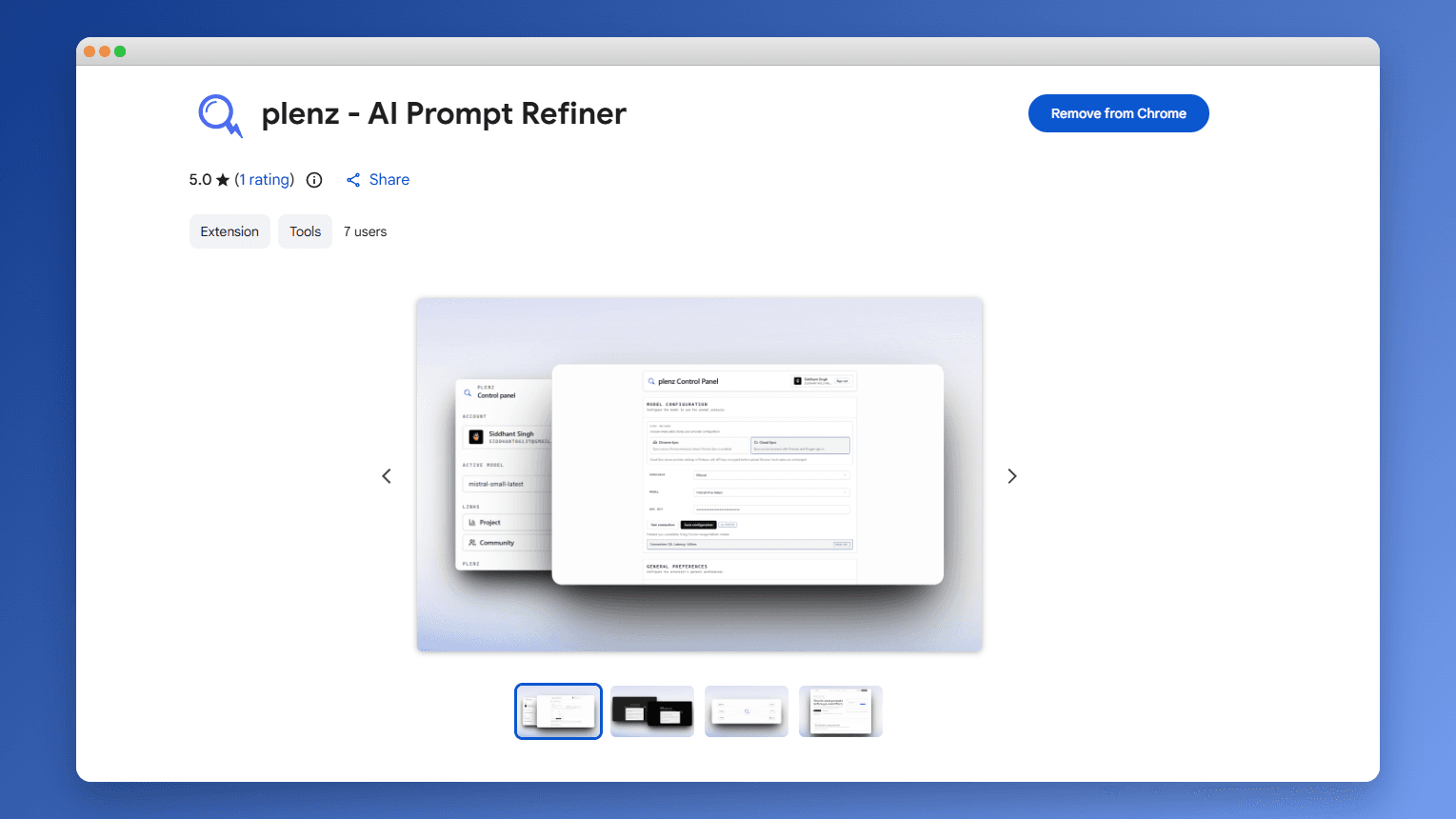
First, download the plenz extension from the Chrome Web Store. Once installed, be sure to pin it to your browser toolbar for quick access. This allows you to easily hop into settings or toggle extension status.
Select your AI Provider
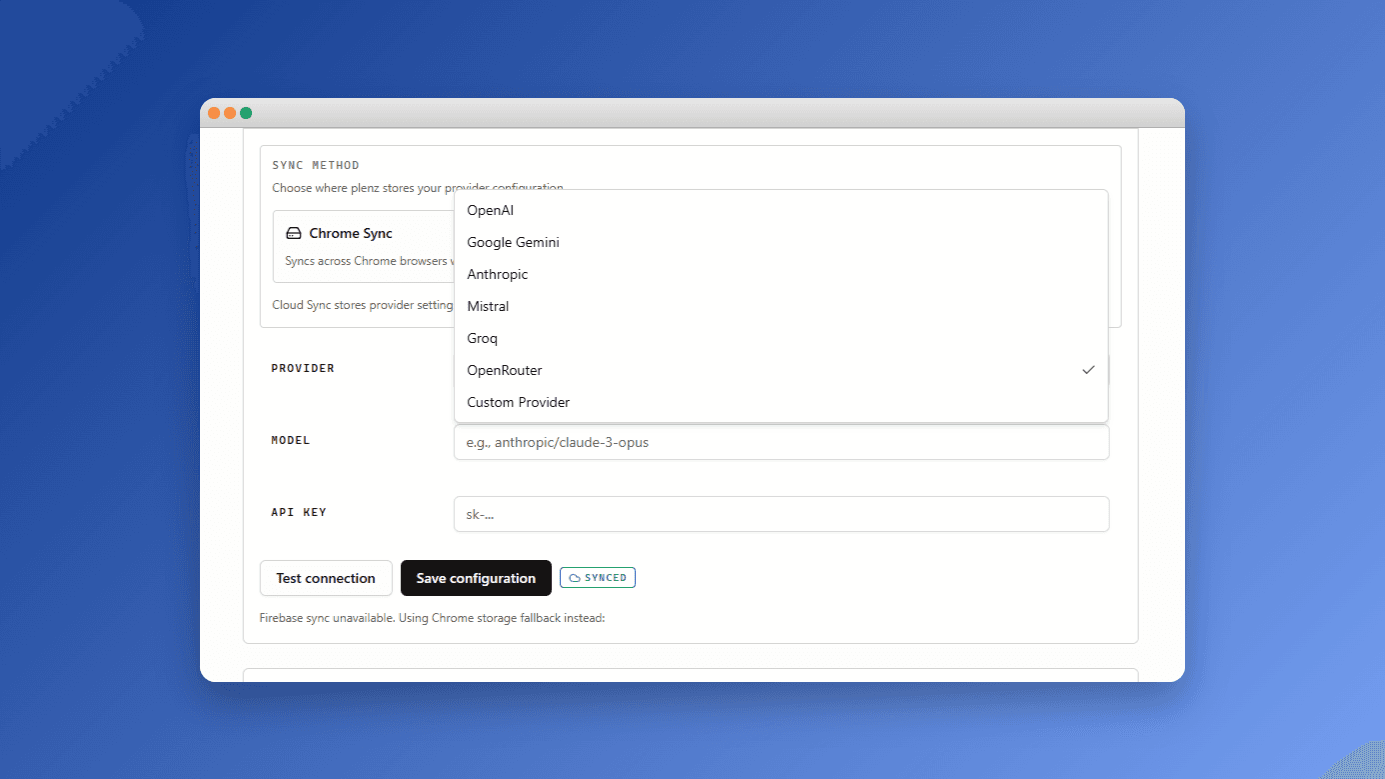
plenz works with the major AI language models. Since we use a "BYOK" (Bring Your Own Key) model, you only pay for your literal inference costs directly to the provider, with zero markup. Click on the plenz icon, open Settings, and select a provider from the dropdown.
Obtain Your API Keys
Retrieve a valid API key from your preferred provider to proceed. The keys are instantly stored in `chrome.storage.local` within your browser and never leave your environment. Expand the sections below to find exact instructions for the provider you just chose.
OpenAI
- Navigate to the OpenAI Platform.
- Sign in to your account.
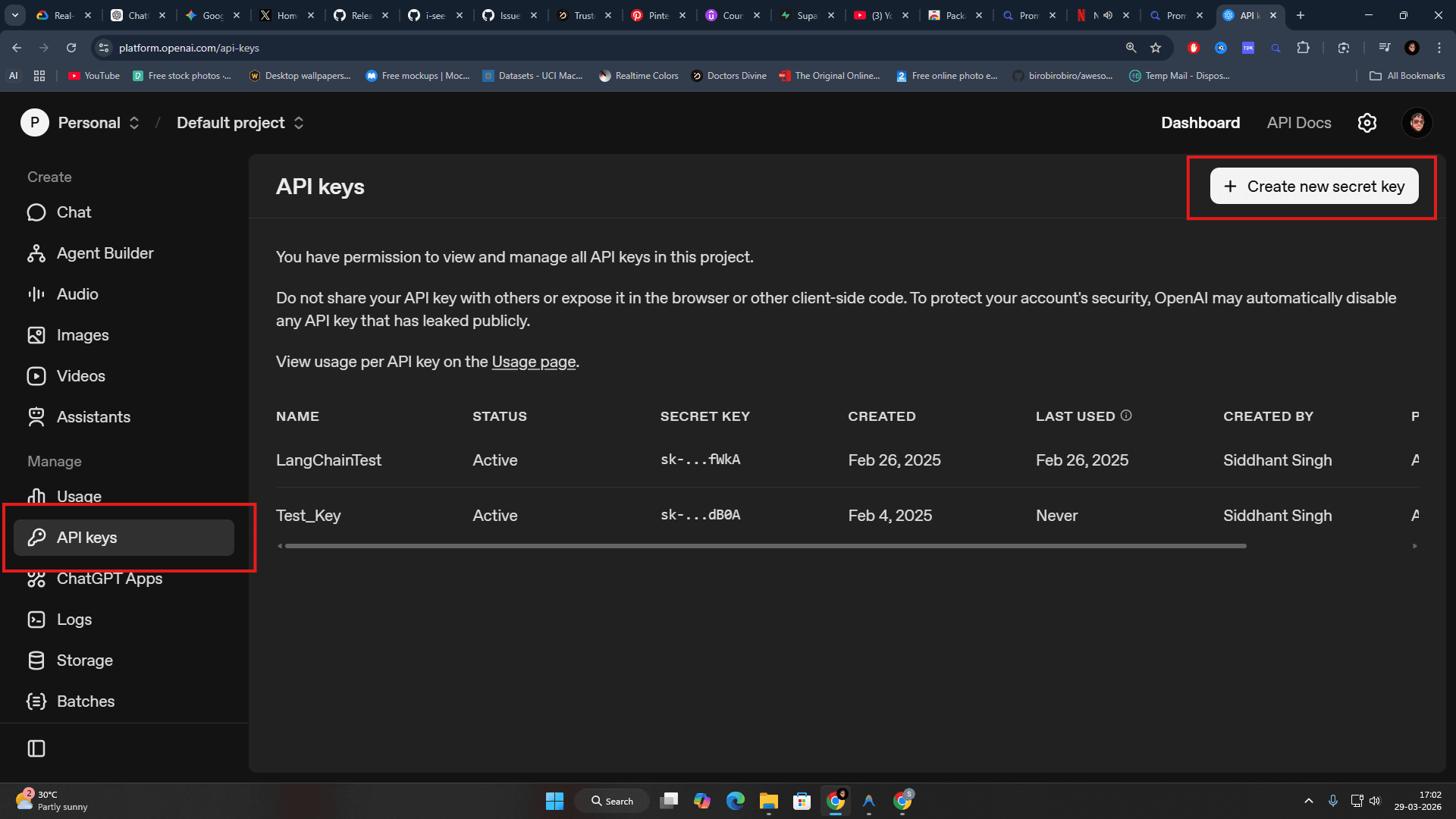
- Go to the Dashboard and select 'API keys'.
- Click 'Create new secret key'.
- Copy your key immediately (you won't be able to see it again).
Anthropic
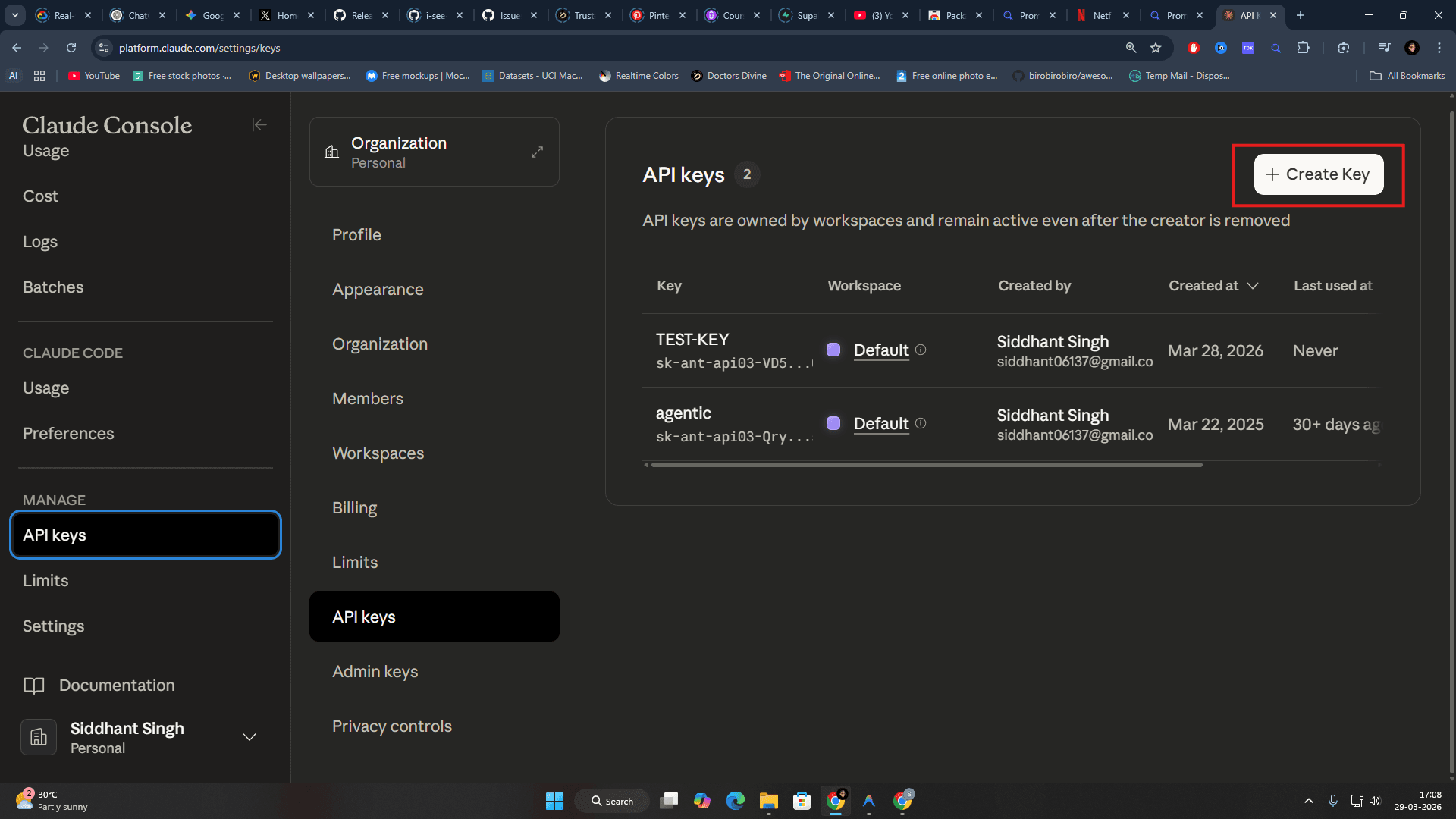
- Navigate to the Anthropic Console.
- Sign in to your account.
- Go to Settings and select 'API Keys'.
- Click 'Create Key'.
- Name your key and copy the generated secret.
Google Gemini
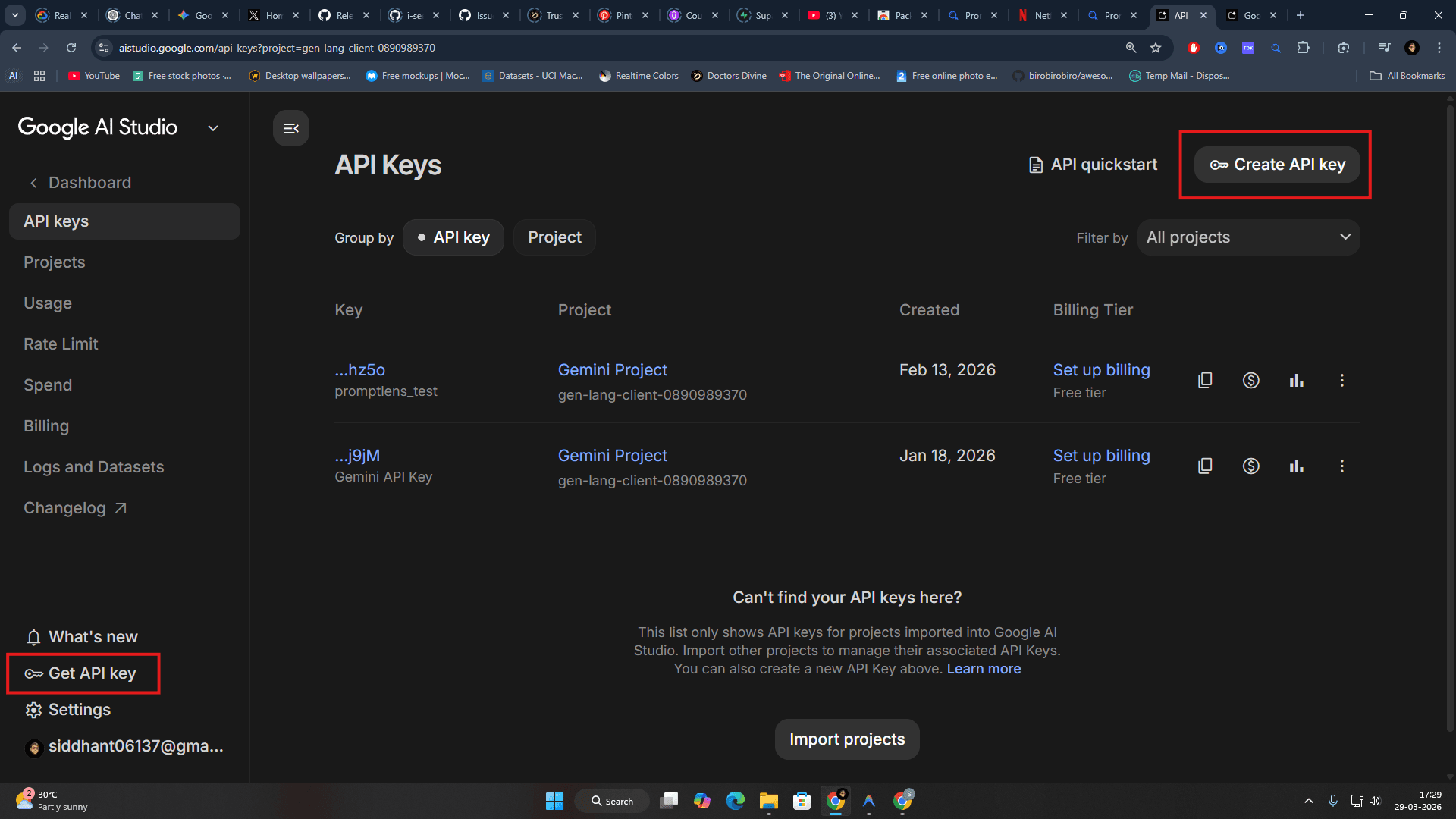
- Navigate to Google AI Studio.
- Sign in with your Google account.
- Click 'Get API key' in the sidebar.
- Click 'Create API key' in a new or existing project.
- Copy the generated API key.
Mistral
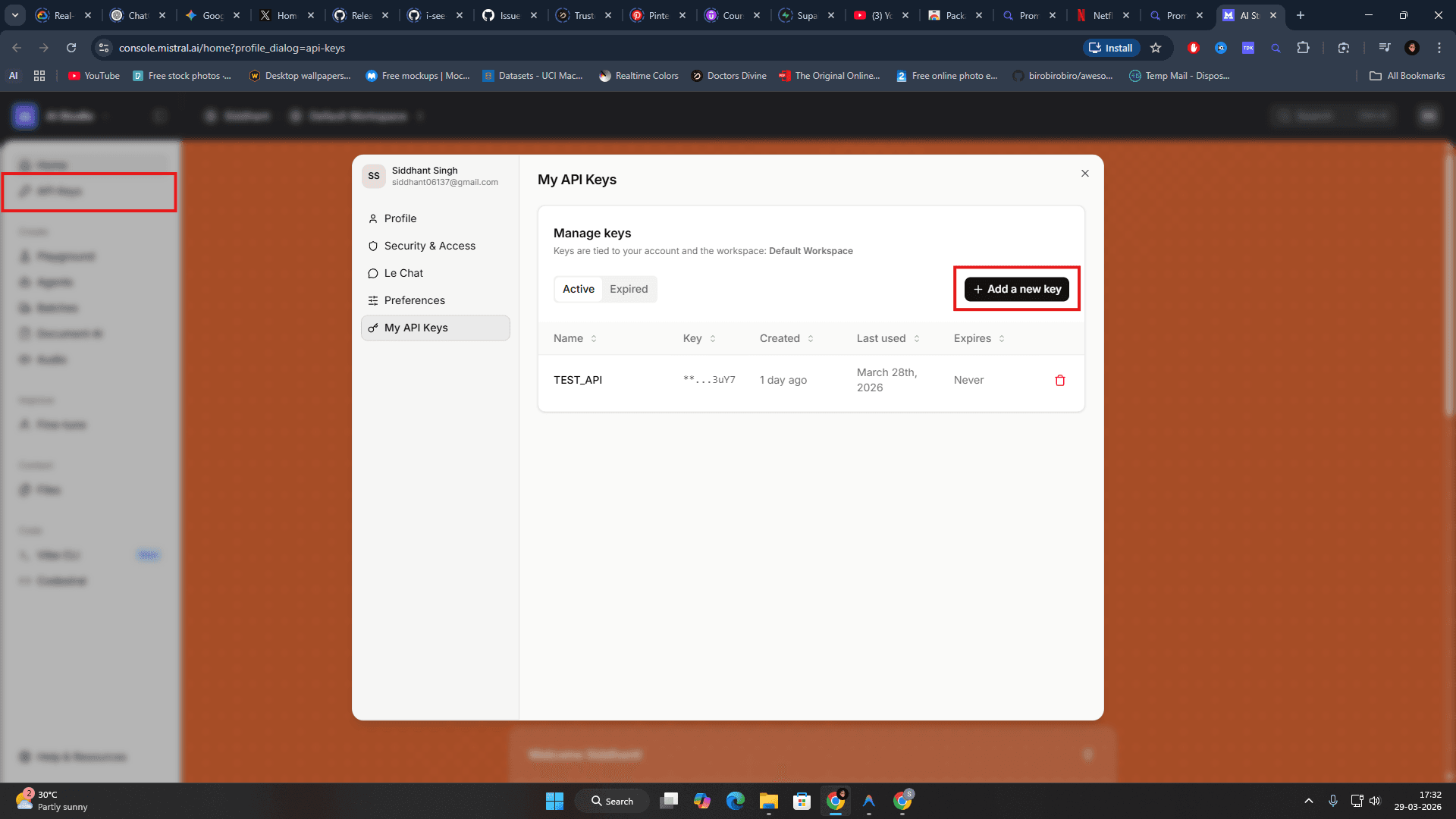
- Navigate to the Mistral Console.
- Sign in to your account.
- Select 'API keys' from the menu.
- Click 'Create new key'.
- Copy the generated key.
Groq
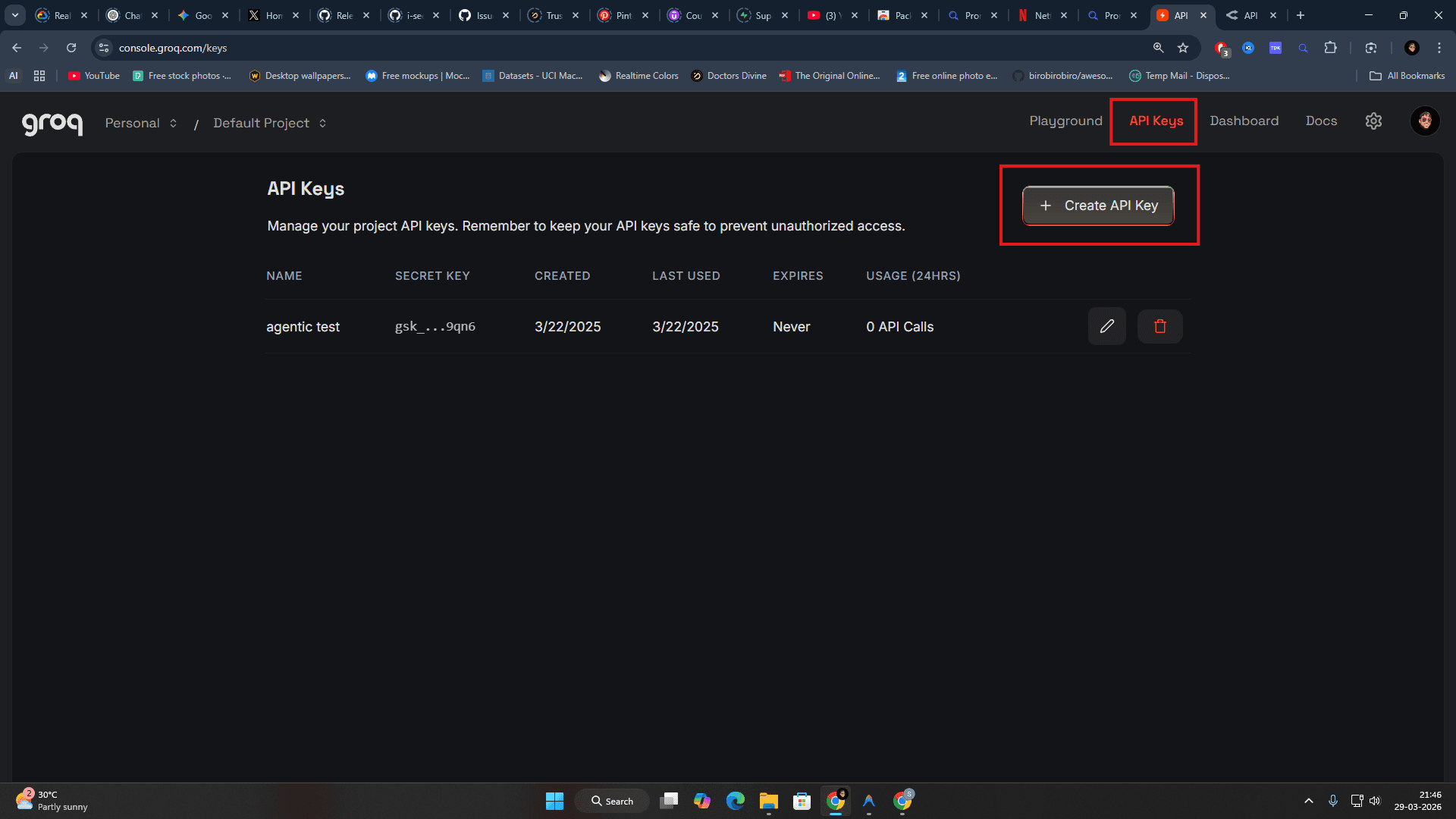
- Navigate to the Groq Cloud Console.
- Sign in to your account.
- Select 'API Keys' from the sidebar.
- Click 'Create API Key'.
- Copy your lightning-fast inference key.
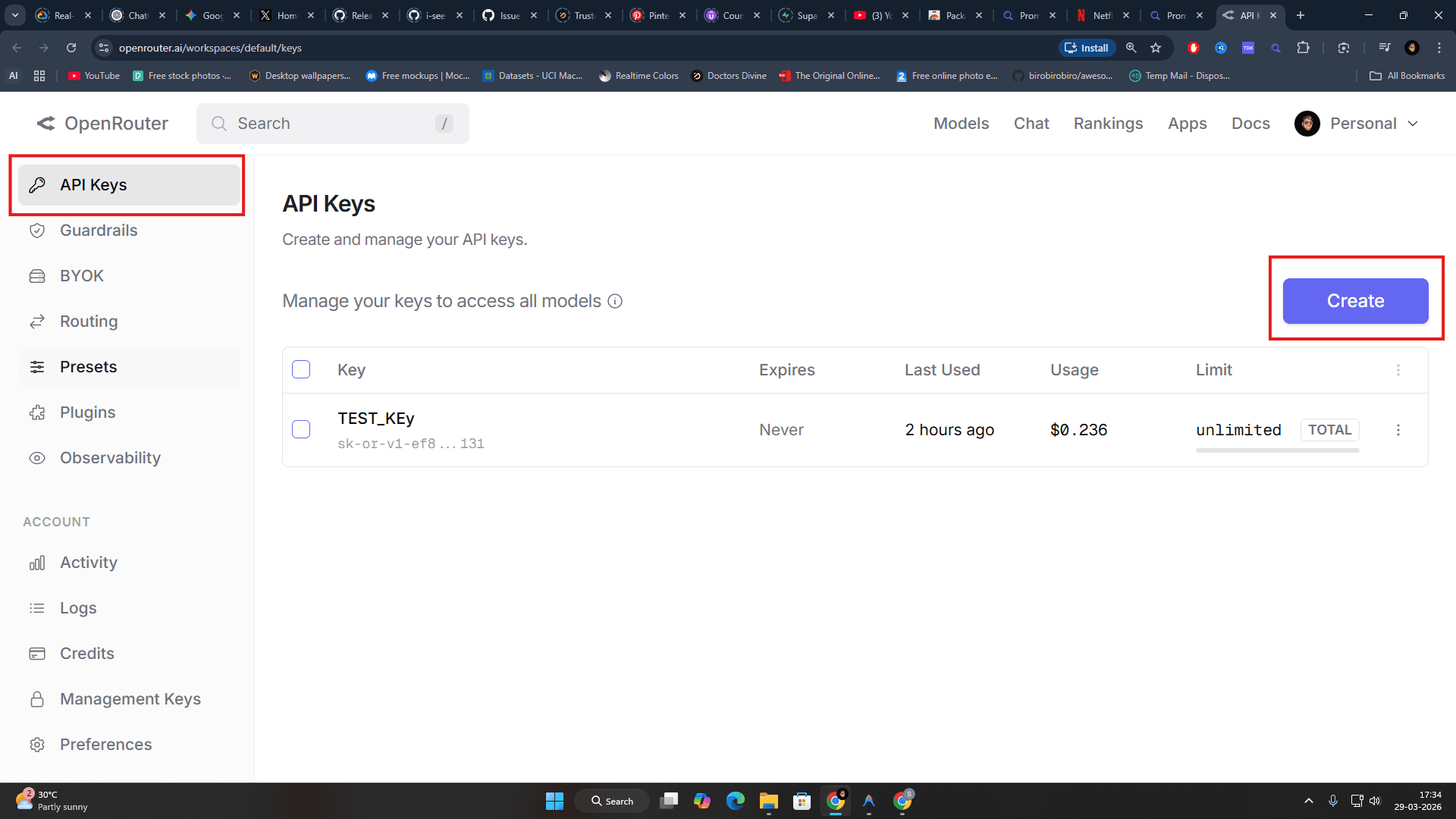
OpenRouter
- Navigate to OpenRouter's Keys page.
- Sign in to your account.
- Click 'Create Key'.
- Copy the generated API key.
Custom (Local & Self-hosted)
- Start your local server (e.g. LM Studio, Ollama, vLLM).
- Locate the host URL (e.g., http://localhost:1234/v1).
- In plenz Settings, select 'Custom'.
- Enter your host URL and optional API Key.
- plenz accepts either a provider base URL or a full OpenAI-compatible chat completions URL. For DeepSeek, use https://api.deepseek.com or https://api.deepseek.com/v1 with deepseek-chat or deepseek-reasoner.
- Test the connection to ensure plenz can reach your server.